 customreceip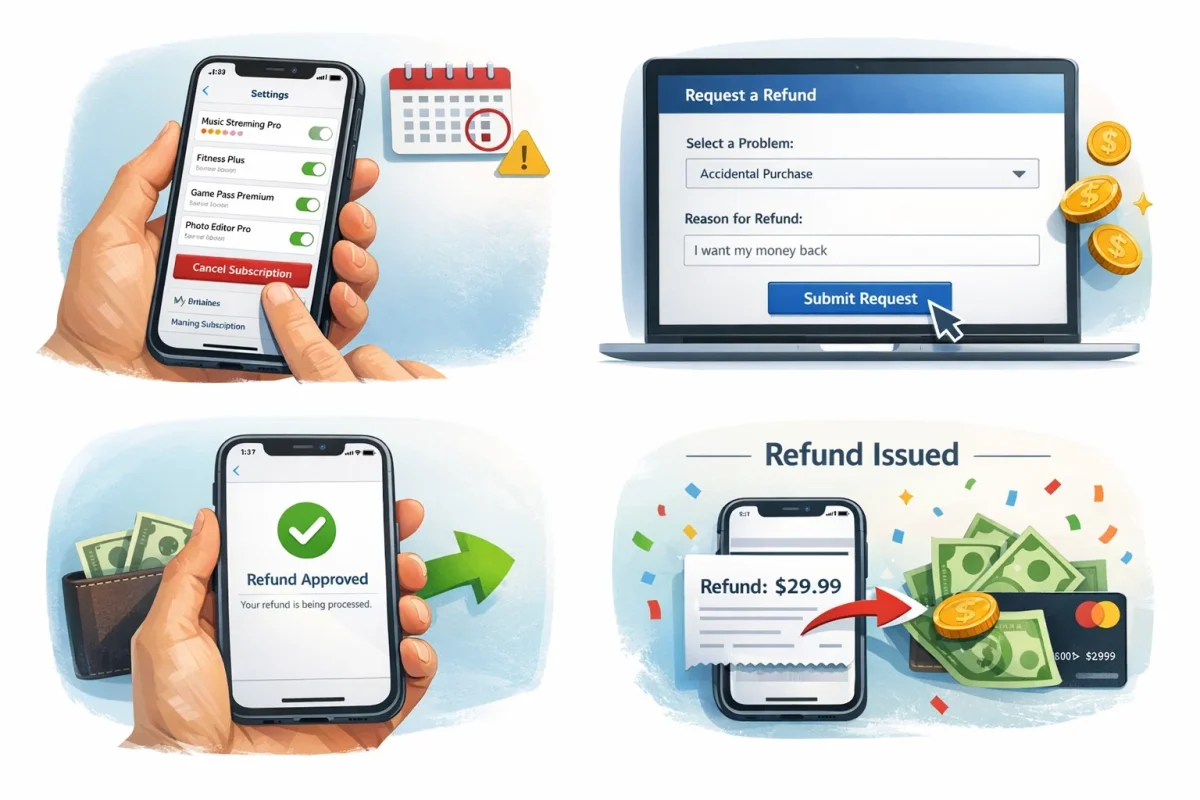
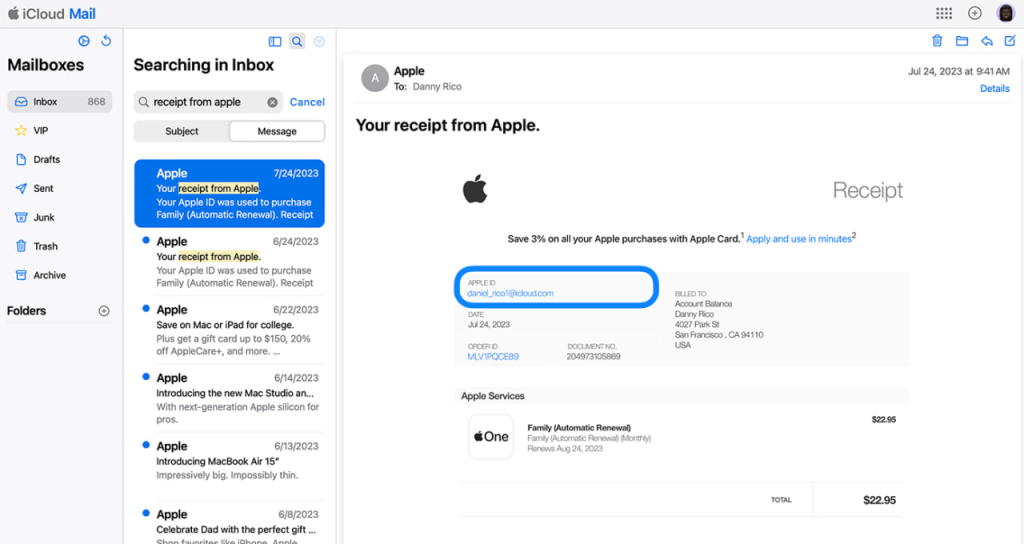
Every year, the number of people using subscriptions for various apps in the Apple Store increases. Sometimes subscriptions are forgotten, or they don’t meet expectations. In such cases, it’s important to know how to correctly cancel a subscription and, if necessary, request a refund. In this article by customreceipt.com, we will provide a detailed guide on how to cancel a subscription in the Apple Store and how to request a refund.
How to Cancel a Subscription on iPhone or iPad
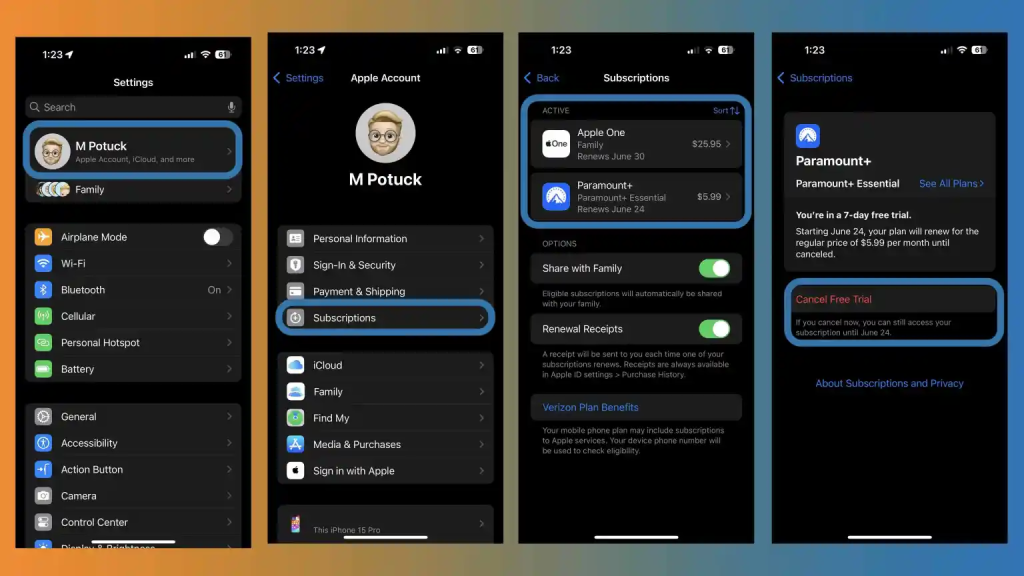
The first step in canceling a subscription is to locate your Apple account settings. Here’s a step-by-step guide:
- Open the Settings on your iPhone or iPad.
- Go to Apple ID. This is your Apple account, where you can manage your subscriptions. Tap on your name at the top of the screen.
- Select Subscriptions.
- Find the subscription you want to cancel under the “Active Subscriptions” section.
- Tap on the app you want to cancel.
- Here, you will see the option to cancel the subscription. Tap Cancel Subscription.
- Confirm the cancellation.
After completing these steps, the subscription will be canceled, and you won’t be charged for the next renewal cycle.
How to Cancel a Subscription on Mac
If you are using a Mac, the process for canceling a subscription is almost the same:
- Open App Store on your Mac.
- Go to your Apple ID and click on your profile in the bottom left corner.
- In the window that opens, click on View Account Information.
- Go to the Manage Subscriptions section and click Manage.
- Find the subscription you want to cancel and click Edit.
- Select Cancel Subscription.
The subscription will be canceled, and you can use it until the end of the current period.
How to Request a Refund for a Subscription
If you accidentally subscribed to an app or find that it does not meet your expectations, you have the right to request a refund from Apple. To do so, you need to follow a few simple steps.
Steps to Request a Refund on iPhone or iPad:
- Open Settings and go to Apple ID.
- Select Purchase History.
- Find the app or subscription for which you want a refund.
- Tap on Help next to the relevant purchase.
- Choose the Request Refund option and fill out the form.
Steps to Request a Refund on Mac:
- Open iTunes or App Store on your Mac.
- Go to your Apple ID and open Purchase History.
- Find the subscription or app for which you want a refund.
- Click on Help and select Request Refund.
- Fill out the form and explain the reason for your request.
How to Request a Refund via the Apple Website
If you prefer not to do this through your device settings, you can contact Apple Support via their website:
- Go to the Apple Support page.
- Select the section Return a product or request a refund.
- Choose the app or subscription for which you want a refund.
- Select the reason for the refund, such as: “I did not want to pay for the subscription,” “The subscription does not meet my expectations.”
- Fill out the form and provide the necessary information.
Can You Always Get a Refund?
Apple processes refund requests on an individual basis. If you have not used the subscription or app within a certain period (usually within a few days after purchase), the chances of getting a refund are high. However, Apple may deny the refund if the subscription was used or if the request was made too late.
Tips to Avoid Unnecessary Subscriptions
To avoid situations where you accidentally subscribe to an app, keep in mind the following tips:
- Check the subscription terms before completing the purchase. Pay attention to the trial period end date and the automatic renewal conditions.
- Regularly update your subscriptions to avoid unnecessary expenses.
- Use free versions of apps or trial periods to test the features before subscribing.
Canceling a subscription in the Apple Store is a straightforward process that can be done through the settings on your device or via the Apple website. If you are dissatisfied with a subscription, you can always request a refund, but be sure to follow the terms and deadlines for submitting your request. Knowing about subscriptions and how to cancel them will help you save money and avoid unnecessary expenses in the future.